Catalyst SD-WAN
Overview
The Cisco In Product Support offers a set of tailored features for the Catalyst SD-WAN to enhance troubleshooting and support operations. This documentation covers key features like file uploads, screen recording, HAR logs capture, case opening directly from the troubleshooting section, general case opening, and smart tips within the portal.
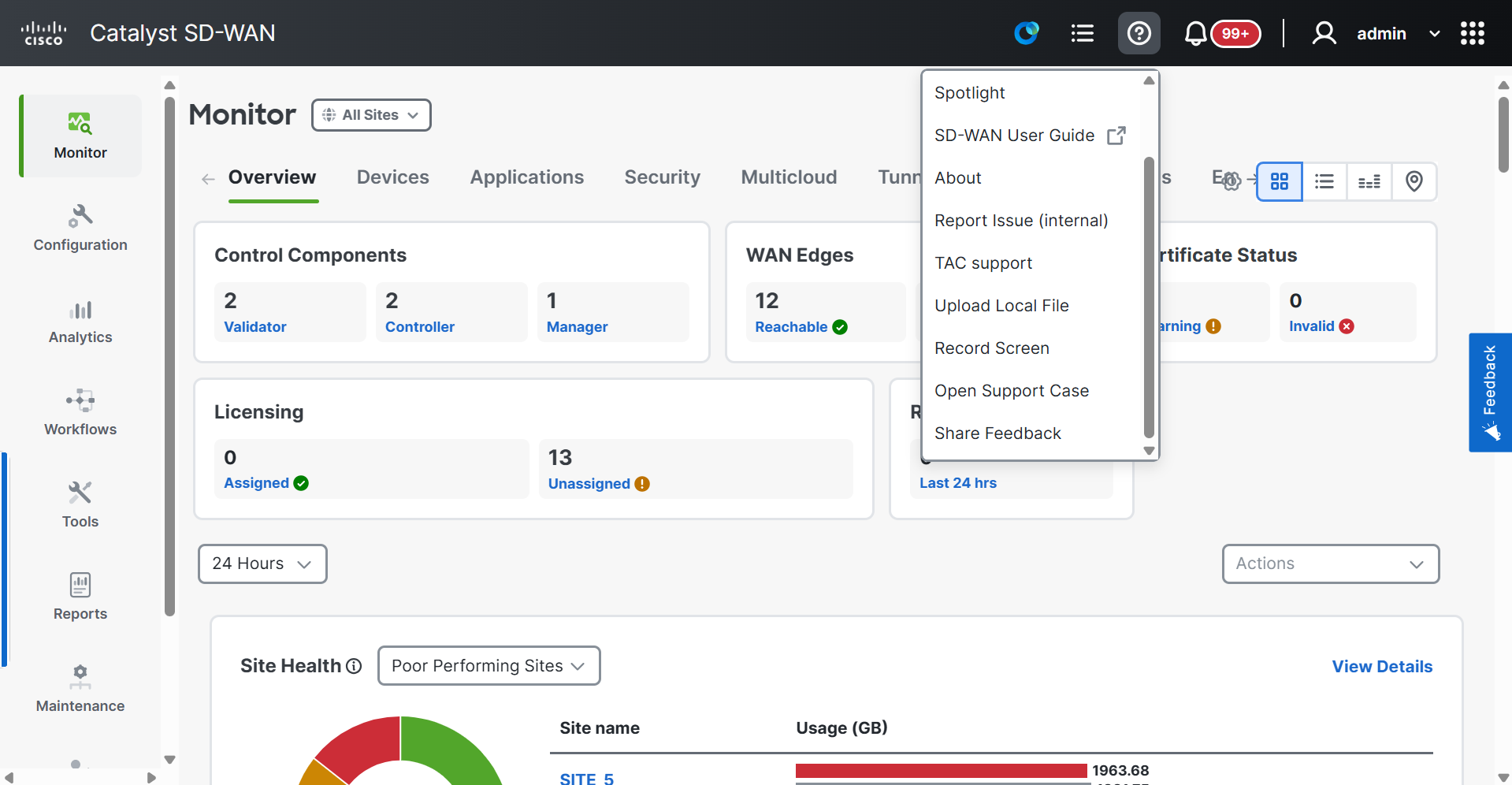
Explore detailed explanations of these use cases in the section titled "Use Cases".
Key Features
-
Case Management: Open, view, and manage Cisco support cases directly from the Chrome extension interface.
-
Screen Recording: Record your screen, including audio and screenshots, to visually communicate issues to Cisco TAC.
-
HAR Log Collection: Capture browser HAR logs to provide detailed diagnostic information for troubleshooting.
-
File Uploads: Upload local files to existing support cases or attach files while creating a new case.
-
Case List: View, track, and monitor case details and status updates for all created cases.
-
Seamless Integration: Integrate with Cisco Catalyst Center for a cohesive support experience.