Getting Started
Welcome to Cisco In-Product Support—a powerful tool designed to enhance your experience with selected Cisco products by providing tailored support directly through your browser.
To access all features, your product must be onboarded with Cisco In-Product Support Extension or via Native embed.
This guide will help you install the extension and guide you through onboarding your product with Native embed.
Cisco In-Product Support Extension
Note: Before installing the extension, ensure your product portal is onboarded with In-Product Support.
Downloading the Cisco In-Product Support
To add the Cisco In-Product Support to your browser, follow these steps:
- Access the Direct Link: Use the Chrome Web Store Direct Link (opens in a new tab) to navigate directly to the extension's download page.
- Add to Chrome: Click on 'Add to Chrome.' A popup will appear asking for confirmation.
- Confirm Installation: Click 'Add Extension' to proceed. The extension will then be added to your Chrome browser.
- Manage Extension: Once installed, you can manage the extension via "chrome://extensions/" or the extension tab beside the search bar.
Important Notes
- Recommended Browser: Google Chrome is officially recommended and supported for the best experience.
- Additional Browser Support: The extension has been tested on Microsoft Edge and confirmed to be functional. It can be made available upon request.
- Listing Status: The extension is unlisted in the Chrome Web Store for security reasons. Users are encouraged to access the extension through official Cisco documentation.
Installation Process
The installation of Cisco In-Product Support is straightforward:
-
Direct Installation: Use the direct link here (opens in a new tab) to add the extension to your Chrome browser.
-
Video Guide: Follow the installation instructions in the below video for a visual step-by-step guide.
-
Pin Extension: Once installed, the extension will be hidden by default. You may pin it to your browser for easier access.
-
Activation: The extension operates on supported pages and will prompt you to activate it when necessary.
Using the Cisco In-Product Support
Navigating Supported Products
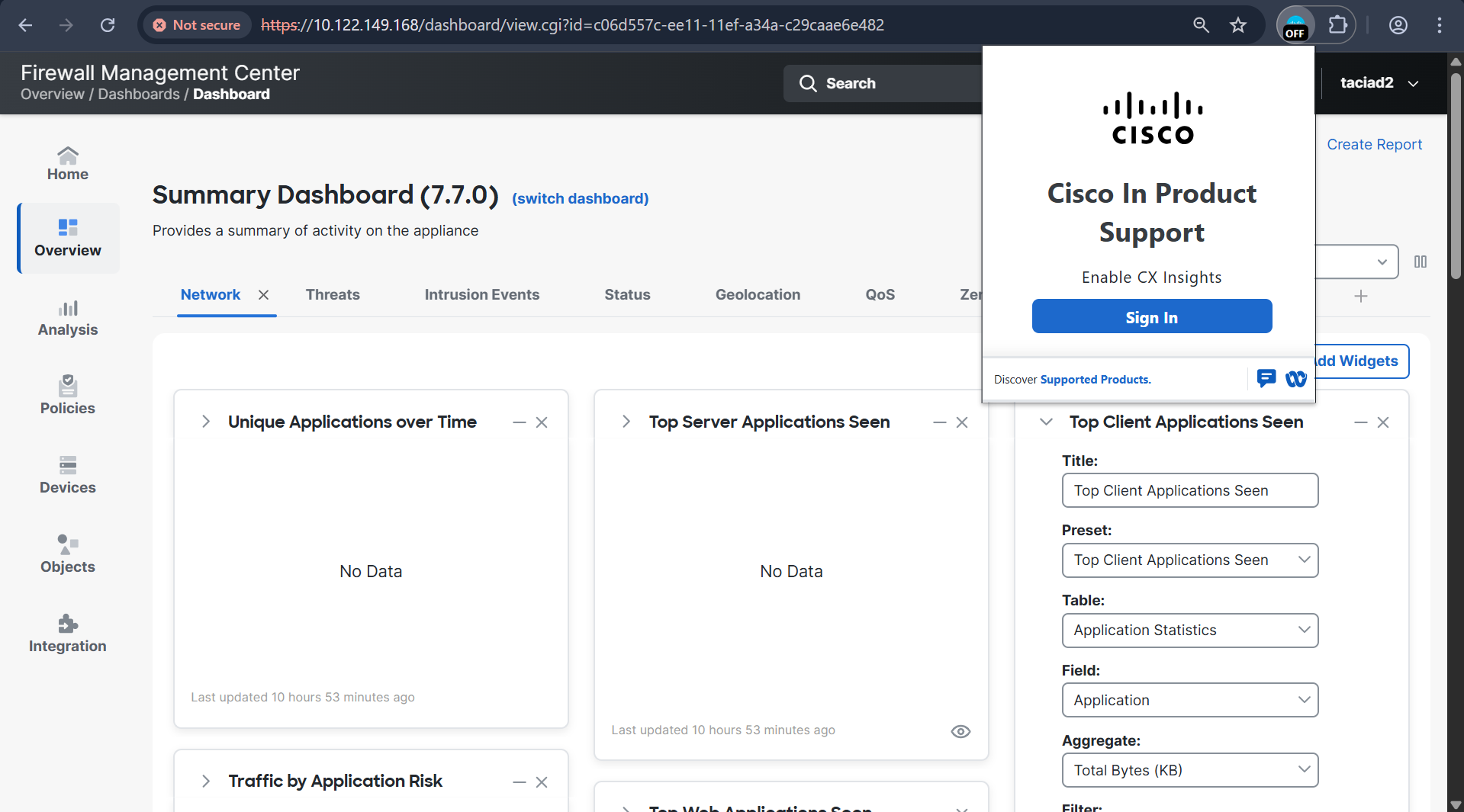
Once installed, navigate through supported product pages or portals. A popup will appear to indicate the applicability of the Cisco In-Product Support experience.
Unsupported Products
If the current webpage does not meet the compatibility criteria:
- A message such as "Unsupported Product" will be displayed, informing you promptly that the extension cannot assist with the current page.

Authentication and Account Management
- Not Logged In: If you are not logged in, a prominently placed "Sign In" button will facilitate logging in via Cisco Single Sign-On (SSO), ensuring a secure and seamless login process.

- Logged In: Once logged in, the popup window will reflect your authenticated status and the services available for the supported product.

- Power and Sign Out: Use the power button in the popup to enable or disable the extension's functionality as needed. A "Sign Out" option is also available for securely exiting your account.

We hope this guide helps you get started smoothly with Cisco In-Product Support. For further assistance, contact us using the Contact option in the navigation bar.
Native Embed
Native Embed integrates directly into the product's UI, making all extension capabilities available without requiring end users to install anything on their browser.

Simple Steps to Use Native Embed Features
- Access the Product: Open a product that has native embed capabilities enabled. Look for the In-Product Support icon within the product interface. Depending on the product's UI, this icon may vary; alternatively, look for a label such as TAC Support.
- Log In: Click the icon and sign in using your Cisco account credentials to authenticate.
- Feature Initialization: After logging in, the product portal will detect available features and load contextual guidance tailored to your current environment.
- Use Features: Once the features are loaded, you can start using the embedded support functionalities directly within the product interface.
This process integrates Cisco TAC support services seamlessly into the product, enabling you to open support cases, record screens, upload files, and access guided troubleshooting without leaving the product environment.
What Native Embed Enables
- Full Extension Capabilities in Product: Product detection, metadata capture, and targeting work exactly as they do in the browser extension.
- Immediate Access to Support: Guided workflows, relevant documentation, file upload, and direct Cisco Case Manager integration are available to users in-product.
- CDAP Campaign Delivery Without Browser Extension: All in-app guidance built in CDAP can be targeted and launched without needing the extension installed by users.
- Always On and Context-Aware: Since it runs within the product codebase, context detection is faster and more consistent.
List of Supported Products on Native Embed
| Product / Portal | Delivery Model |
|---|---|
| AI Infrastructure, Secure Networking, and Software Solutions | NPM |
| Cisco Compatibility Matrix | NPM |
| SHP (Cisco Support Home Page) | NPM |
| Collaboration Solutions Analyzer | CDN |
| Web Help Portal | NPM |
| SLAM | CDN |
| Security Cloud Control | NA |
| FMC / CDFMC | CDN |
| Cyber Vision | CDN |
| SD-WAN | CDN |
| WLC | CDN |